syncing your schedule to your calendar

Syncing your schedule to your calendar on mobile (iOS)

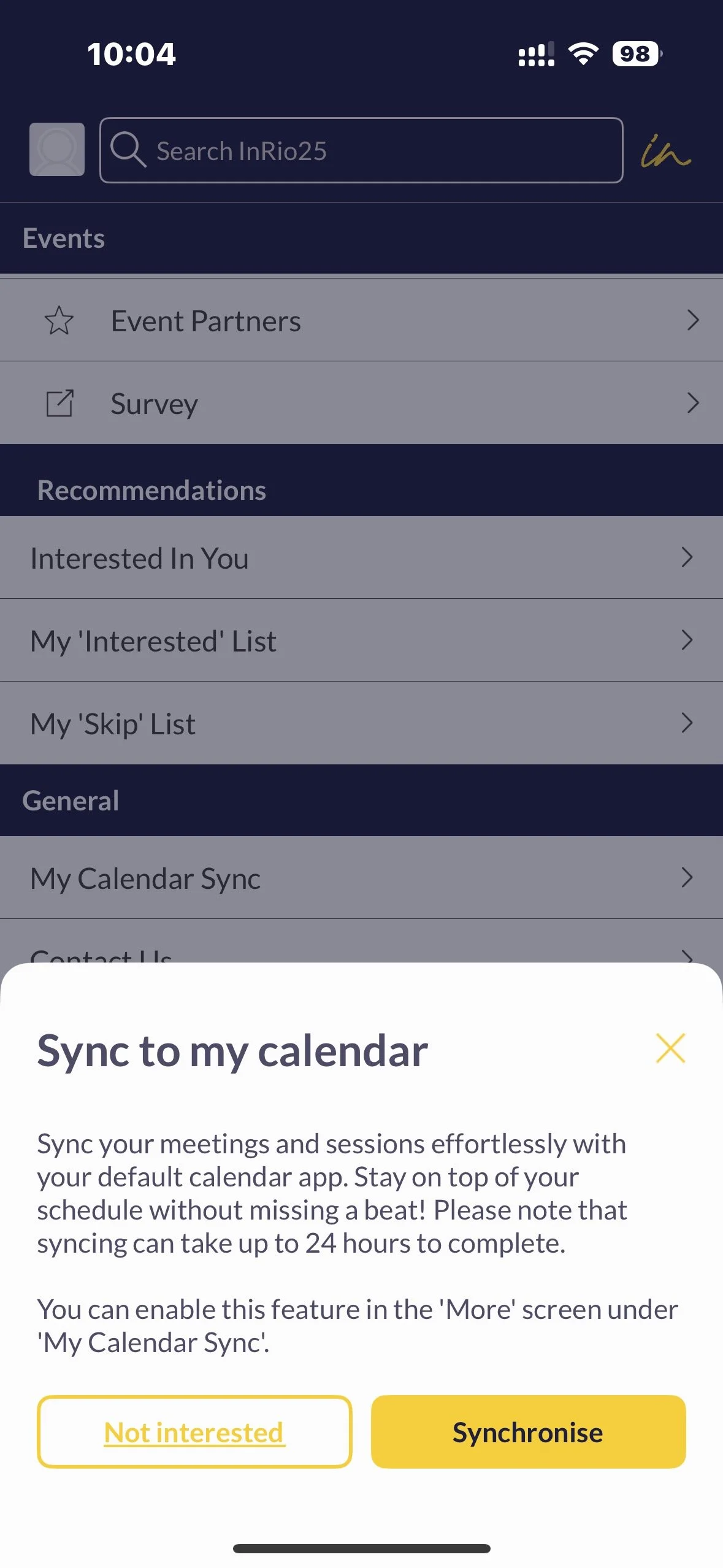
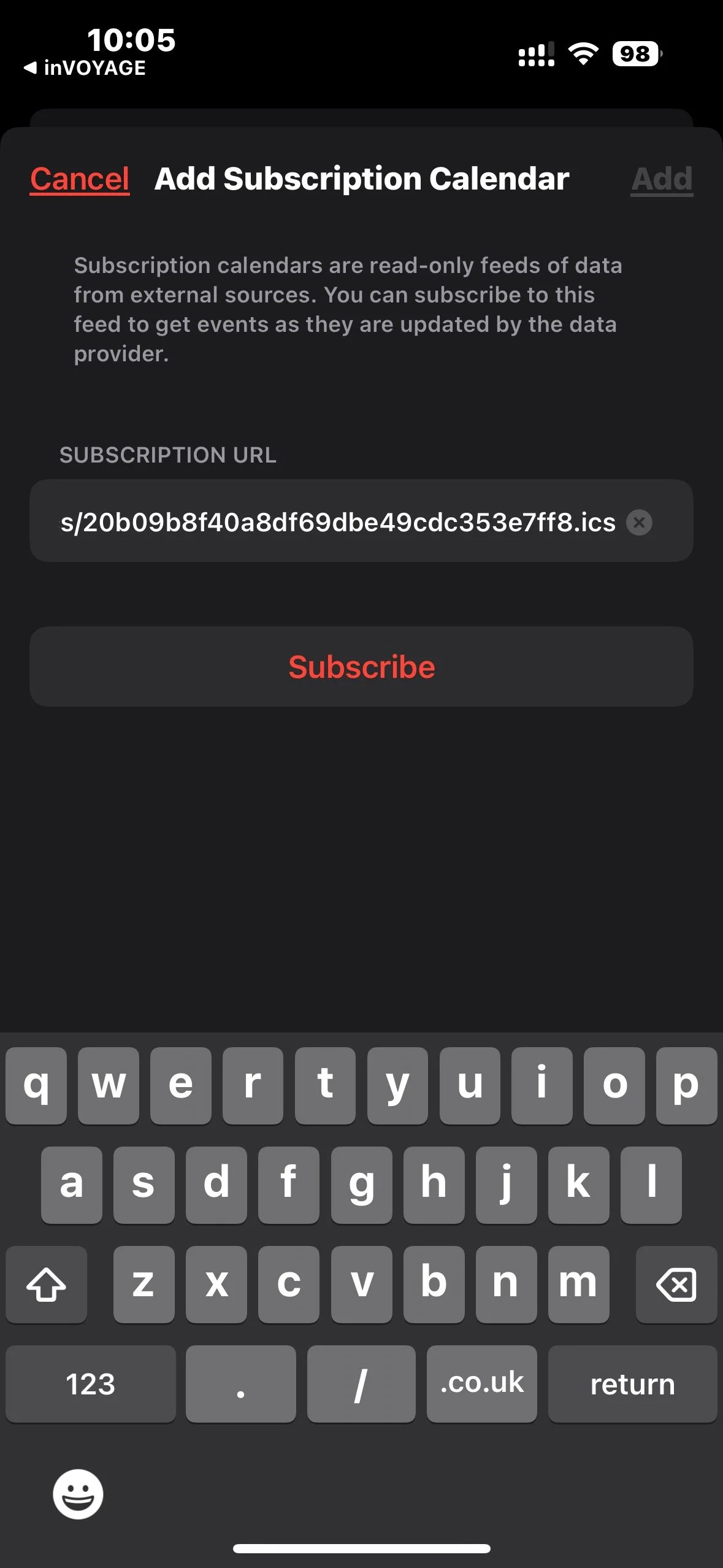
On iOS go to ‘More’ in the App, click ‘My Calendar Sync’ and press synchronise and your calendar app will open with the option to subscribe and name your calendar. If you skip or you’re simply not interested in syncing your calendar at that moment, you can always go back and do it from your “More” screen inside the app at a later date.

  1. Click ‘More’ on the App.

  2. Click ‘My Calendar Sync’.

  3. Click synchronise.

  4. Subscribe to the calendar.

  5. Set a name and settings for the calendar and click add.

  6. Make sure the calendar is selected on the left-hand side for it to be visible.

Screenshot of a mobile app interface with a navigation menu. The top shows the time 10:04, network signals, Wi-Fi, and battery at 98%. Below is a search bar labeled 'Search InRio25'. The menu displays options for Events, Recommendations, and General settings, with icons. At the bottom, a navigation bar has icons for Home, Chats, Schedule, Notifications, and More. The screen also shows options to Sign Out.
Mobile app screen showing a calendar synchronization prompt with options to 'Not interested' or 'Synchronise'.
Screenshot of a mobile app screen for adding a subscription calendar, with a read-only data feed URL, a red Cancel link, and a red Subscribe button, with a black background and a gray keyboard at the bottom.

Syncing you schedule to your calendar on mobile (Android)

  1. Click ‘more’ in the App.

  2. Click ‘My Calendar Sync’.

  3. Click synchronise.

  4. Once your default system calendar app opens, it will show you the list of events that will be imported, once you tap on “save” the calendar events will be imported in your calendar app.

  5. If you skip or you’re simply not interested in syncing your calendar at the moment, you can always go back and do it from your “More” screen inside the app at a later date.

Screenshot of a mobile app, showing a dark blue background with a menu list. The top has a search bar with 'Search InRio25' inside. Below are sections titled 'Events' with options 'Event Partners' and 'Survey,' and 'Recommendations' with options like 'Interested In You,' 'My 'Interested' List,' and 'My 'Skip' List.' The 'General' section has options like 'My Calendar Sync,' 'Contact Us,' 'About this Solution,' 'Privacy Policy,' and 'Acceptable Use Policy.' The bottom menu bar has icons for Home, Chats, Schedule, Notifications, and More, with 'More' highlighted. The top right shows 100% signal strength, Wi-Fi, and 98% battery, with the time as 10:04.
Screen showing a mobile app interface for syncing calendar events. A pop-up window at the bottom offers options to 'Not interested' or 'Synchronize' to the calendar, with text explaining the sync process.